10.15.8 2026-001 Update (19H2036) Released! (note my old school update thumbnail style)
macOS Catalina 10.15.8 2026-001 Update is now Available.
Today, Apple released an update for macOS Catalina. This operating system came out more than six years ago, and many of us assumed it would never receive another update again. Surprise! We now have macOS Catalina 10.15.8 (2026‑001).
This is the link for what’s new in macOS Catalina Updates. The page entry is even marked “This article has been archived and is no longer updated by Apple”
“This update extends the certification required by features such as iMessage, FaceTime, and device activation to continue working after January 2027.”
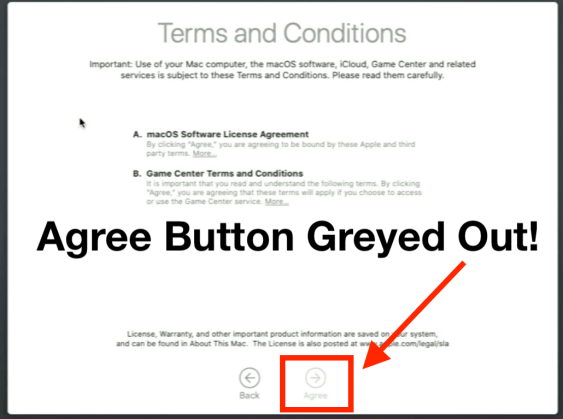
After installing macOS Sierra, High Sierra, Mojave and Catalina you can’t continue past the iCloud terms and conditions window because they Agree button is greyed out.
UPDATED 1/10/23
Users started reporting this issue late last week.
A quick summary of the issue.
The issue is triggered after attempting to sign into iCloud at the setup assistant window after installing macOS with the following OS listed below. You will be unable to continue past the screen, because the Agree button is greyed out.
The issue affects the following macOS versions 👇
1. macOS Catalina 10.15
2. macOS Mojave 10.14
3. macOS High Sierra 10.13
4. macOS Sierra 10.12
5. OS X El Capitan 10.11
6. OS X Yosemite 10.10
7. OS X Mavericks 10.9
My quick video demonstrating the issue
Reproducing the issue.
The issue can be reproduced every time by attempting to sign into iCloud in the setup assistant window.
How to Fix the Issue
The fix is very simple, all you need to do is click the back button. Then click “Set Up Later” at the top of the Sign In with Your Apple ID window.
Click “Set Up Later” to bypass the issue.
Walk though the rest of the macOS setup assistant until you get to the desktop.
You can still sign into iCloud once you get into the OS.
The good news is that you can sign into iCloud in system preferences after the setup assistant.
What is causing the issue?
Unknown at this time. Could it be a server side issue? I will update if I find any further info.
have more than 20,000 files your upgrade could fail.
In some situations users have reported 500,000 – 2,000,000 files!!!
This is the reason why the problem could never be reproduced.
If you build a fresh system the file counts for spotlight will be very low. You might have 20-400 entries. This would allow the upgrad to finish properly.
Table of contents
Different situations. The macOS stuck progress bar issue has many different situations.
How can I check how many mdworker files my system has before an upgrade.
I have more than 20,000 files. How do I clear them out before the upgrade?
The files have been deleted! Now what?
What if you booted your failed Mac into safe mode after having the issue?
How to remove the firmware password on 2011-2020 Macs + New way for 2018-2020 T2 Macs!
You can now remove the firmware password (+ erase all data) on a T2 Mac without Apple Support if you forgot it.
In this article, I will go over the history of the firmware password on Intel Mac computers. After that, I will show you a new way how to remove the firmware password (and erase your data) on a T2 Mac from 2018-2020. (Scroll to section 6).
NOTE: This information is only for 2006-2020 Intel Mac computers. Apple Silicon M1 Mac Devices do not have a firmware password.
I will also go over my recommendations on how you can protect your data at the end of this article.
I will answer the following questions.
What does setting a firmware password on a Mac do?
What are the differences in firmware passwords from the following years – 2006-2010, 2011-2017 & 2018-2020?
How to you set the firmware password in recovery.
How to Enable & Disable Firmware Password in macOS.
What can you do if you forget the firmware password?
How to remove the firmware password with Apple Support.
Removing the firmware password on a T2 Mac with Apple Configurator 2.
How long was this new way possible? Does anyone at AppleCare know about this?
What does this mean for education, small & large companies, home users, computer recyclers, and criminals?
The macOS Big Sur upgrade is not checking to make sure enough free HD space is available. The upgrade will start, then run out of space and fail. If FV2 encryption is enabled, you will be locked out of your data!
UPDATED 10/07/21 –Latest Updates!!! – For the latest information be sure to check the UPDATES section below.
Quick Summary – When you start the macOS Big Sur upgrade, the installer should first check to make sure your Mac has enough free space available. If the installer finds that you do not have enough free space for the upgrade, it will stop and not let you continue. You should see a pop up message showing you how much space is needed before you can attempt the upgrade again. This free space check is NOT working. The upgrade will start even if you only have 1% of free space left and will fail. Your hard drive is now 100% full and the installer is now stuck in a boot loop attempting to finish the install. This leaves you unable access your data! I will go over all the details below and show you a fix at the end.
I’ve been trying to get a handle on this issue for over a month now. The first signs that this is becoming a larger issue came after the macOS Big Sur 11.2 update was made available. Reports started to roll in saying that the Big Sur Upgrade failed and the only way to fix it was to erase and reinstall macOS. I noticed an increase in traffic to this article. >
Security Updates 2020-001 for Catalina & 2020-007 Mojave
Security Updates 2020-001 for macOS Catalina (19H114) & 2020-007 Mojave (18G7016) & Safari 14.0.2 are now Available.
Apple has released Security Updates 2020-001 (Catalina) and 2020-007 (Mojave). MacOS High Sierra is now officially unsupported by Apple. The 2020-006 Security Update was High Sierra’s final update. Mojave has taken its place as the 3rd supported version of macOS behind Catalina.
Since this security update is Catalina’s first it was named 2020-001. Mojave has had 7 Security Updates so the version is 2020-007. Next year they will both be named 2021-001.
Mr.Macintosh 2020-001, 2020-007 & Safari 14.0.2 Security Update video
Mojave however still does! The 2020-007 security update creates a snapshot and does NOT purge previous snapshots.
I really wish Apple could get this feature working again.
The Safari 14.0.1 upload issue is not fixed in 14.0.2.
A simple example of this is using Gmail in Safari. If you update to Safari 14.0.1 or 14.0.2 you will be unable to attach anything to an email The only work around right now is to use Chrome or Firefox.
New workaround = drag and drop the file into the window.
Install Process Fixed!
With the release of 2020-006, Apple has changed things up. In the past you could have the base version of Mojave, 18G103 for example and the latest security update would show as available and you could update right to it. With 2020-006 you will need to be on 2020-005 first before you can update to 2020-006! This is a huge pain if you have systems that are behind in build versions.
Example.
If you have a fresh build of macOS Mojave 10.14.6 (18G103) and you want to get to 2020-006.
1. Install Security Update 2020-005 first.
2. After installing 2020-005, you will now see 2020-006 available for instal in software update.
With the release of the new 2020-001 and 2020-007 Security Updates, Apple now lets you jump straight to the latest update.
Updated Fixed Example
If you have a fresh build of macOS Mojave 10.14.6 (18G103) and you want to get to 2020-007.
Install 2020-007 = Done
Testing the Security Update Install Process
After all the problems of the 2020-005 Security Update for Mojave caused, I wanted to again make sure everything was ok with 2020-001 & 2020-007. I’ve installed both the 2020-007 and Safari 14.0.2 updates and have not found any issues. You can safely install both of them together.
Click “Continue Reading” to read the rest of the article.
macOS Catalina 10.15.7 Supplemental Update is now Available.
UPDATE 11/11/20:Apple has just released a full installer for macOS Catalina 10.15.7 that includes the Supplemental Update Security Fixes! No word of an updated combo update or a downloadable pkg yet. I will update if they become available!
Today Apple released the 6th Supplemental Update for macOS Catalina. With the release of 10.15.7, we thought Apple would continue with an easy way to identify updates. The 10.15.7 Supplemental update seemed to dash those hopes. The update does not even list any fixes in it. The only wording is
“macOS Catalina 10.15.7 Supplemental Update is recommended for all users and improves the security of macOS”
This tells us that the update only has security related fixes in it!
In the security link, Apple calls out 3 security vulnerabilities. I will go over them below.
Mr. Macintosh Catalina 10.15.7 Supplemental Update Video
The macOS Catalina 10.15.7 Update includes the following Security fixes.
macOS Catalina 10.15.7 Supplemental Update provides important security updates for your Mac.
This update is an important update due to this quote from Apple
A malicious application may be able to execute arbitrary code with kernel privileges. Apple is aware of reports that an exploit for this issue exists in the wild.
Apple
The Supplemental Update patches the following
FontParser arbitrary code execution = Found in the wild!!!
Two Kernel Exploits = Both found in the wild!!!
All three vulnerabilities have been reported to Apple from the Google Project Zero Team.
Treat this Supplemental Update as a High Priority!
Confusing Update Situation
We have a couple update scenarios that we need to discuss. Normally Apple releases new Delta and Combo Updates. This time we only have a delta update for 10.15.6 users. If you have anyone on 10.15.0-10.15.5 they will be offered the OLD 10.15.7 (19H2) Update. They will have to install the 10.15.7 Supplemental Update after!
10.15.7 users = NEW 10.15.7 Supplemental Update
10.15.6 users = NEW 10.15.7 Delta Update
10.15.0-10.15.5users = OLD 10.15.7 Combo Update – Will need to install the 10.15.7 Supplemental Update after.
10.15.7 Full Installer = Remains OLD 10.15.7 (19H2) version and will need to install the 10.15.7 Supplemental Update after.
Hat Tip to my fellow Software Update Investigator Eric Holtam! Follow him on Twitter @eholtam
Apple’s Public Patch Notes / Release Notes Documentation
NOTE: Apple Documentation takes a little while to show up online after release. I will update when the new articles are made available.
The following security fixes are included in Catalina 10.15.7.
Released November 5, 2020
FontParser
Available for: macOS Catalina 10.15.7
Impact: Processing a maliciously crafted font may lead to arbitrary code execution. Apple is aware of reports that an exploit for this issue exists in the wild.
Description: A memory corruption issue was addressed with improved input validation.
CVE-2020-27930: Google Project Zero
Kernel
Available for: macOS Catalina 10.15.7
Impact: A malicious application may be able to execute arbitrary code with kernel privileges. Apple is aware of reports that an exploit for this issue exists in the wild.
Description: A type confusion issue was addressed with improved state handling.
CVE-2020-27932: Google Project Zero
Kernel
Available for: macOS Catalina 10.15.7
Impact: A malicious application may be able to disclose kernel memory. Apple is aware of reports that an exploit for this issue exists in the wild.
Description: A memory initialization issue was addressed.
On Friday October 23rd, HP printer owners started reporting that they couldn’t print. The error message = HPDeviceMonitoring.framework will damage your computer.
UPDATE: 10/28/20 – I just finished my new video that goes over the issue. I also give a live demo of how to uninstall the bad HP drivers. In the second part, I go over 5 different ways to reinstall new HP drivers. (Video is below this paragraph)
UPDATE: 10/28/20 – I’ve added multiple new instructions to #8 Workarounds / Fixes section.
UPDATE: 10/27/20 – HP has posted a new community knowledge article on the issue with full install instructions.I posted the link in section 8 (Workarounds/ Fixes).
An issue like this is normally something that I would be immediately reporting on, but I was away from my Mac until late Saturday. I started to investigate the issue as soon as I returned. One thing I noticed right away was that the signature was valid! Howard Oakley covered this issue extensively since Friday. I asked Howard to check the signature again and sure enough he confirmed it was good. I figured it was case closed, and shelved the article.
NOPE!
Many users are still reporting printing problems. This time around though, it seems like a different cert issue. Plus users are reporting errors from other frameworks and services like scanning.
Mr. Macintosh HP Printer Driver Certificate Issue overview, How To & Workaround + Fixes video.
Below are a few of Howard’s articles covering this issue.
1. HP Printer Driver Certificate Problem Error Messages
2. Affected macOS Build Versions
3. Affected Mac Hardware
4. What is the error message “X will damage your computer” means.
5. User Reports
6. HP & Apple Response?
7. Replicate the issue.
8. Investigation
9. Workarounds / Fixes
10. If you are seeing this issue, please let Apple know.
11. HP Printer Driver Certificate Problem links
12. Hat Tip/Credits
1. HP Printer Driver Certificate Problem Error Messages
If you are having the issue, you might get one of the error messages below.
1. “HPDeviceMonitoring.framework” will damage your computer.
2. “hpPostProcessing.bundle” will damage your computer.
3. “HPDM.framework” will damage your computer.
4. “Matterhorn.framework” will damage your computer.
5. “Productimprovementstudy.hptask” will damage your computer.
6. “HP Scanner 3” will damage your computer.
7. “inkjet1.driver” will damage your computer.
8. “HP Utility” will damage your computer.
9. “PDE.plugin will damage your computer.
10. “ScanEventHandler.app” will damage your computer.
11. “FaxArchive.task” will damage your computer.
12. “inkjet3.driver” will damage your computer.
13. “commandtohp.filter” will damage your computer.
2. Affected macOS Build Versions
This issue affects the following macOS Build Versions.
macOS Catalina
macOS Mojave
No reports so far of this happening on macOS High Sierra 10.13.
If you are on macOS High Sierra 10.13 and are having this issue, let me know in the comments.
3. Affected Mac Hardware
Past problems would only happen with certain hardware models. Not this time, if you running Catalina or Mojave with an HP Printer, you might be having problems.
4. What is the error message “X will damage your computer” means.
From Apple
Safely open apps on your Mac macOS includes a technology called Gatekeeper, that’s designed to ensure that only trusted software runs on your Mac.
support.apple.com/en-us/HT202491
For this particular error the article says this.
If macOS detects that an app has malicious content, it will notify you when you try to open it and ask you to move it to the Trash.
If Gatekeeper detects a problem with an application, it will give you this warning.
5. User Reports
The first reports came in on Friday October 23rd 2020.
I spent a while with Apple Support, Something this morning (10/23/20) broke the HP printing drivers framework on Catalina OS 10.15.7. They have received many calls with different items related to HP informing it will damage your computer, My printer does not print. I have a Laserjet 4200 with all kinds of options (envelop feeder, etc.) It is a vicious circle – Apple says to call HP as they need to provide the drivers, I have not been able to speak to anyone at HP that can help.
More reports started to roll in on the Apple Discussion Forums.
I’m getting the exact same popup, I know its not malware. because it’s part of my printer software downloaded from Apple Mac store but apple not updated my software a few OS’s ago and have Malwarebytes Premium installed for a few years now. I have not downloaded anything in past 24-48 hours. somehow I think its a MacOs compatibility issue apple will need to address
After over a year with having two HP printers in use, this morning, 10/23/2020 after startup of my Mac, I started getting this same pop-up. In searching for a cause, I saw where to look in the ~/Library/LaunchAgents folder and indeed this file was put there yesterday, 10/22/2020, at 10:00 AM: com.hp.devicemonitor.plist I deleted this file from the ~/Library/LaunchAgents folder, which resolved the pop-up box from coming up, however now my HP Envy 7640 printer will not work. Our other HP printer does continue to work. Hoping Apple will come up with suggestions on this.
Thomas Reed started to see a bunch of support tickets due to this problem.
We're seeing a significant influx of support cases where users are seeing macOS identify what appear to be legit processes as malware, exactly what is being reported here:https://t.co/vPojXGukzp
We've got quite a few cases continuing to come in to support on the HP software issue. Even though the cert has been un-revoked, some folks still see the issue. Folks are either angry that we didn't detect the "malware" or because they think we're detecting it erroneously. ?
We unintentionally revoked credentials on some older versions of Mac drivers. This caused a temporary disruption for those customers and we are working with Apple to restore the drivers. In the meantime, we recommend users experiencing this problem to uninstall the HP driver and use the native AirPrint driver to print to their printer.
When issues like this have come up in the past, I always attempt to replicate the issue. When I got back late Saturday night, it seemed like the issue was resolved. I checked the certificate/signing and it looked good! The cert was showing as invalid earlier in the day. After this, nothing I could do could reproduce the issue on my home HP printer. This might mean that new users might not have the issue. It’s still unknown at this time.
I was able to get the error on a network printer using a spooler driver. I would get the same error. After clicking OK, the print que would stop with an error.
It looks like this issue can no longer be reproduced. From what we know so far, you would have needed to have your Mac online from October 23-24th and already have the printer drivers installed. If you try the same thing now, printing will be fine.
8. Investigation.
Let’s try to figure out what happened here.
1st Issue – (Friday – Late Saturday)
Howard was able to check the HP Utility.app using is home built free app ArchiChect. This is what the application reported.
The application signature check has FAILED! The check reports that the certificate was REVOKED!
2nd Issue – Late Saturday, I ran the same check and this is what it reported.
Looks good right? I thought that HP had reissued the cert and everything was good to go!
I started to receive more and more reports saying that the issue was still NOT fixed.
Let’s take a closer look.
If we run the same check on one of the frameworks we get this
source=Unnotarized Developer ID
The same thing happens if we run the command manually on the HP Utility.app
1.Use AirPrint – AirPrint is the future of printing on macOS. (NO DRIVERS NEEDED!) If your printer supports AirPrint use it. For more info check out this link >
2. Let macOS install the correct driver for you! After deleting the hp folder and removing the printer. Plug in your printer in via USB. You will get a popup like this
macOS detects that it does not have the driver for this HP printer.
Click “Install” to let macOS attempt to find and install the HP printer driver.
macOS is auto installing the driver!
When the install is complete the printer will show up in System Preferences > Printers & Scanners! Simple as pie right ?
3.Uninstall and then reinstall HP drivers. This is also is a proven workaround.
1. Delete the /Library/Printers/hp folder
2. Delete Printer from System Preferences > Printers and Scanners
3. Install HewlettPackardPrinterDrivers.dmg from Apple (Link below)
4. Add printer back in System Preferences > Printers and Scanners by hitting the + button. You should see your printer listed under USB
5. Test print!
Depending on your printer model, you should only need to install the Apple HP Printer Drivers 5.1.pkg. (HP printers from October 2017 and below)
Catalina 10.15.7 Update = accountsd using 400% CPU if using iCloud
Catalina 10.15.7 Update is causing problems with the accountsd process. The issue only seems to happen if you use iCloud Drive, Mail, Calendar or Internet Accounts.
Something is wrong with the iCloud sync process. Users are saying that after they installed the 10.15.7 update, the accountsd process runs up to 400%+ in Activity Monitor. When the issue starts, it slows the Mac down to a crawl. This causes the Mac to quickly drain the battery, heat up and kick the CPU fans into high gear. Another process that could be acting up is suggestd.
UPDATE 9/29 10:00AM – I’ve added 2 new fixes in the workarounds section below. One kills the cm.apple.iCloudHelper process and recreates the .sqlite database. The other was to remove Find My Mac then re enable it.
This comes after I reported major problems with the macOS Mojave 2020-005 Security Update that came out on the same day. Apple has pulled both the Safari 14.0 and Mojave 2020-005 Security Updates.
If you use iCloud – Drive, Mail & Calander and you have installed the 10.15.7 update, you might have problems. Finder will be sluggish and general system speed is slow. If you open up Activity Monitor and then select the CPU tab, you might see accountsd taking up a huge amount of CPU. It might be running at over 400%, you can see what that looks like in the screenshot below.
accountsd taking up over 400% CPU
2. Affected macOS Build Versions
This issue affects the following macOS Build Versions.
macOS Catalina 10.15.7 Update(19H2) – Released on September 24th, 2020
macOS Catalina 10.15.6 and below, as I noticed a few reports from 10.15.6 around the 25th. For 10.15.6 users, sometimes just updating to 10.15.7 fixes the issue for them.
No reports so far of this happening on macOS Mojave 10.14 or High Sierra 10.13.
Looks like a variant of this issue goes all the way back to the Catalina 10.15.1 Update. But most reports disappeared until it came back after installing 10.15.7.
3. Affected Mac Hardware
Past problems would only happen with certain hardware models. Not this time, if you installed the Catalina 10.15.7 Update on a compatible Mac you might have problems. As I noted in the Affected macOS Build Versions above, the issue could be affecting 10.15.6 and below users.
4. What is the accountsd process?
From Apple
Help users access and manage their external accounts from within your app, without requiring them to enter login credentials. The Accounts framework provides access to user accounts stored in the Accounts database, which is managed by the system. An account stores the login credentials of a particular service, such as Twitter, and you use those credentials to authenticate with the service. When you integrate the Accounts framework into your app, you don’t need to store account logins yourself. Instead, the user grants your app access to use their account login credentials, bypassing the need to type their username and password. If no account for a particular service exists in the user’s Accounts database, you can let them create and save an account from within your app.
The first reports came in on Friday, one day after Apple released the Catalina 10.17.5 Update.
accountsd process is eating 500% cpu and making macbook pro 15,1 useless after Catalina 10.15.7 update. Even if you force this process to quit it comes back at ~500% CPU and make lots os apps to hang.
More reports started to roll in on the Apple Discussion Forums.
Same here, upgraded to 10.15.7 and CPU usage spikes. Seems that the processes ‘accountds’/ ‘commerce’ are responsible for this and killing the process ‘commerce’ is a only a temp ‘solution’ for minutes and then same problem appears again. Tried also SMC reset without success!!!
I just updated to Catalina last month. Everything was running smooth and fine under 10.15.6. I did the 10.15.7 update yesterday first through the normal way –> system preferences – Software update and then the trouble with the accountsd-process has also begun.
Additionally, boot time is slower, logging in is slower and when doing so I’m met with a blank desktop which needs 7-8 seconds before icons finally appear. Everything feels sluggish, and applications also take more than twice as long to start up.
After reading multiple reports I felt that it was time me to take a closer look.
6. I’m trying to replicate this issue now.
When issues like this have come up in the past, I might not be able to reproduce them. I have to go purely on user reports, which at times can be tough. I want to make sure the reporting is very accurate.
The test Mac was setup with the exact settings that most of the users have reported.
1. Install 10.15.6
2. Set Up iCloud Drive, Mail and Cal
3. Install 10.15.6 Update > 10.15.7
4. Test settings.
I’ve been unable to reproduce this issue. I had the article ready for this weekend but did not have enough solid reports of the issue. Now enough reports have come in to solidify the issue as a problem for users.
7. Workarounds / Fixes
This list of workarounds will start from the very simple to more advanced.
You do NOT have to follow the list until the end, just stop when one of the solutions fixes the issue for you (starting from #1).
1.Reboot! Yes multiple users have mentioned that a simple reboot fixes the issue.
2. Cycle Wifi off then back on. (I said we were starting out simple.. )
3.Sign out of iCloud then reboot.
4.Sign back into iCloud – For some users they are able to sign back in and not have any issues. If you sign back in and are still having issues keep going down the list.
5.Are you on 10.15.6 with this issue? Install the 10.15.7 Update.
6.Disable iCloud Drive Options > Internet Accounts > iCloud > Options Button > unselect all options – Restart
6. Disable iCloud options – Internet Accounts > iCloud Uncheck all – Photos, Mail Contacts, Calendars, Reminders, Safari, Find My Mac, Notes & Keychain – Reboot – If you get any popup messages asking if you want to keep the items on your Mac. Make sure you select “Keep on This Mac” if you need to save your keychain passwords for example. After this if the problem goes away you can attempt to re enable them.
7. Sign out of all System Preferences > Internet Accounts > added email addresses. This includes any IMAP, POP, Gmail, Yahoo. Office365 o365 or Exchange accounts. Reboot – Then see if the issue comes back. If not then attempt to re add the email accounts.
Below are medium skill level fixes
7. Delete local Mail store & preferences – Disable iCloud Mail Sync – then delete /Users/yourhomefolderhere/Library/mail & /Users/yourhomefolderhere/Library/containers/com.apple.mail – Enable iCloud Mail Sync.
8.Delete Local Items Keychain folder (BACKUP ANY PASSWORDS FIRST) – Users/yourhomefolderhere/Library/Keychains – It will be the blue folder with the UUID looking numbers. Delete this folder and immediately reboot.
9.Reset iCloud settings when you can’t sign out.
If you run this command it will do the following.
1. Kill the com.appleiCloudHelper process
2. Move your iCloud .sqlite database to a new backup folder
3. kill accountsd process
4. reboot
Open the terminal.app, then cut and paste the command below.
Below are more advanced level fixes that hope you don’t have to do.
9. Do you have time machine backups? Restore from your last good backup.
10. Reinstall (Not Erase) macOS Catalina 10.15.7 – This workaround will reinstall macOS Catalina 10.15.7 and you will be able to keep all your files and applications. All you need to do is download the Catalina Full installer from the App Store and reinstall. You can also do this by booting to recovery. Restart your mac and hold down Command R. This will boot you to recovery, just select Install macOS Catalina.
If you need any help with any of the above workarounds let me know in the comments.
Update Automatic Snapshots
Automatic Update Snapshots was introduced as a feature in macOS High Sierra. You can read about them below. This was one of the best features that Apple has ever added to macOS. Sadly this will not help you in this situation as they only work for 10.13 and 10.14 Security Updates. Apple disabled this option in 10.15 Catalina Combo Updates.
After updating MacOS 10.15.7, accountsd's CPU utilization spiked to almost 500%. I tried rebooting several times, but it didn't fix the problem. As accountsd is icloud sync process, I signed out from iCloud and re-signed in. And then, everything got back to normal. v(´-ω-`)v
What’s New in the macOS Catalina 10.15.7 Update (19H2)?
macOS Catalina 10.15.7 Update is now Available!
For the first time since Mac OS X Snow Leopard, Apple has progressed past a .6 point release! I’m very happy with this change, as it’s easier to understand dot releases compared to supplemental updates. This is the 21st update overall for macOS Catalina.
UPDATE! 9/29/20 – I just posted an article talking about the Catalina 10.15.7 Update accountsd process using 400%+ CPU.
UPDATE! 9/27/20 –A few reports are coming in that the 10.15.7 update is causing some problems with the accountsd process. After the installing the 10.15.7 update, accountsd runs up to 400% in Activity Monitor. The issue might happen for some users that are using iCloud for Drive, Mail or Cal. Other reports say the issue can happen if you are using internet accounts with Gmail. This issue causes system slowness until resolved. Most fixes say to log out of iCloud or Gmail then restart.
Let’s take a look at the macos Catalina 10.15.7 update changes.
What’s New in the 10.15.7 Update Mr. Macintosh video.
10.15.7 Update = accountsd process using 400%+ CPU if using iCloud Mr. Macintosh Video.
The macOS Catalina 10.15.7 Update includes the following fixes.
macOS Catalina 10.15.7 provides important security updates and bug fixes for your Mac.
Resolves an issue where macOS would not automatically connect to Wi-Fi networks
Fixes an issue that could prevent files syncing through iCloud Drive
Addresses a graphic issue that may occur on iMac (Retina 5K, 27-inch, 2020) with Radeon Pro 5700 XT
Apple’s Public Patch Notes / Release Notes Documentation
NOTE: Apple Documentation takes a little while to show up online after release. I will update when the new articles are made available.